Conditional Access Guest Accounts
Guests themselves don’t need P1 assigned, but the policy won’t do anything until the tenant has P1 active for its own members.
Enforcement is currently soft, not hard. Microsoft doesn’t technically block Conditional Access from working if you’re short on licenses — Entra ID processes connections that require multifactor authentication no matter if the account has a premium license — but Microsoft has started surfacing warnings about it: tenants are now seeing informational messages in the Entra admin center flagging that some Conditional Access policies are protecting more users than their current licensing entitlements allow, though this is not a precursor to billing and there’s no automated enforcement yet.
Setup a Guest Conditional Access policy
Policy name: Require MFA - Guest and External Users
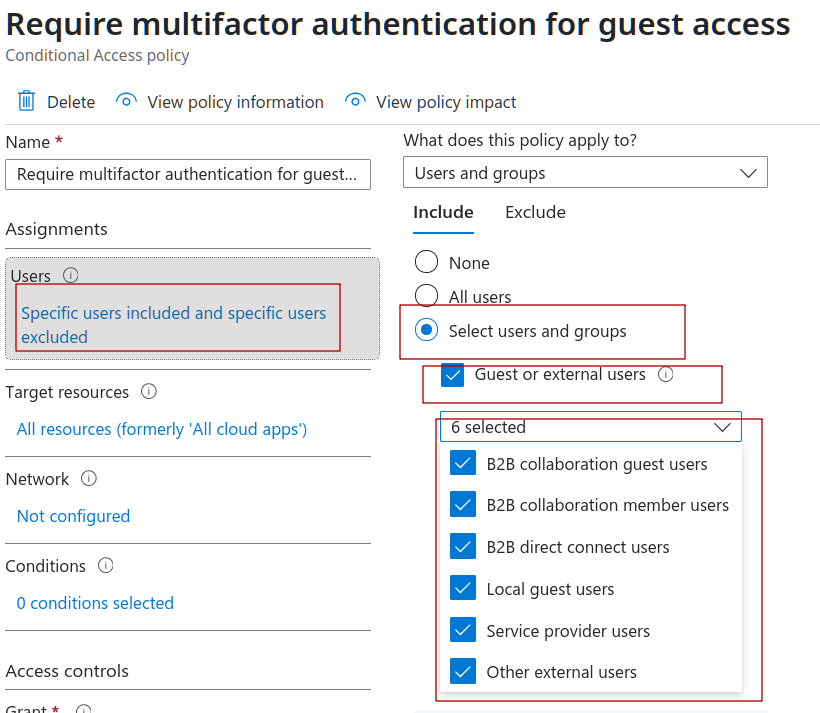
Step 1 — Select users and group
- Include → Select users and groups → Guest or external users
- Tick these guest types: B2B collaboration guest users, B2B collaboration member users
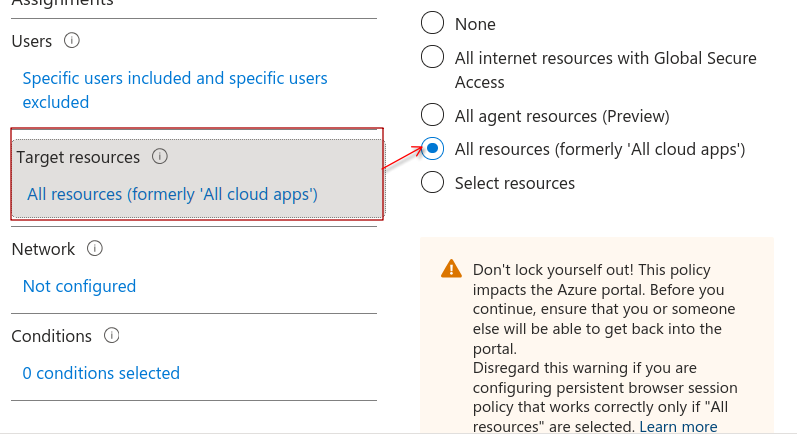
Step 2 — Target Resources
- Include → All cloud apps
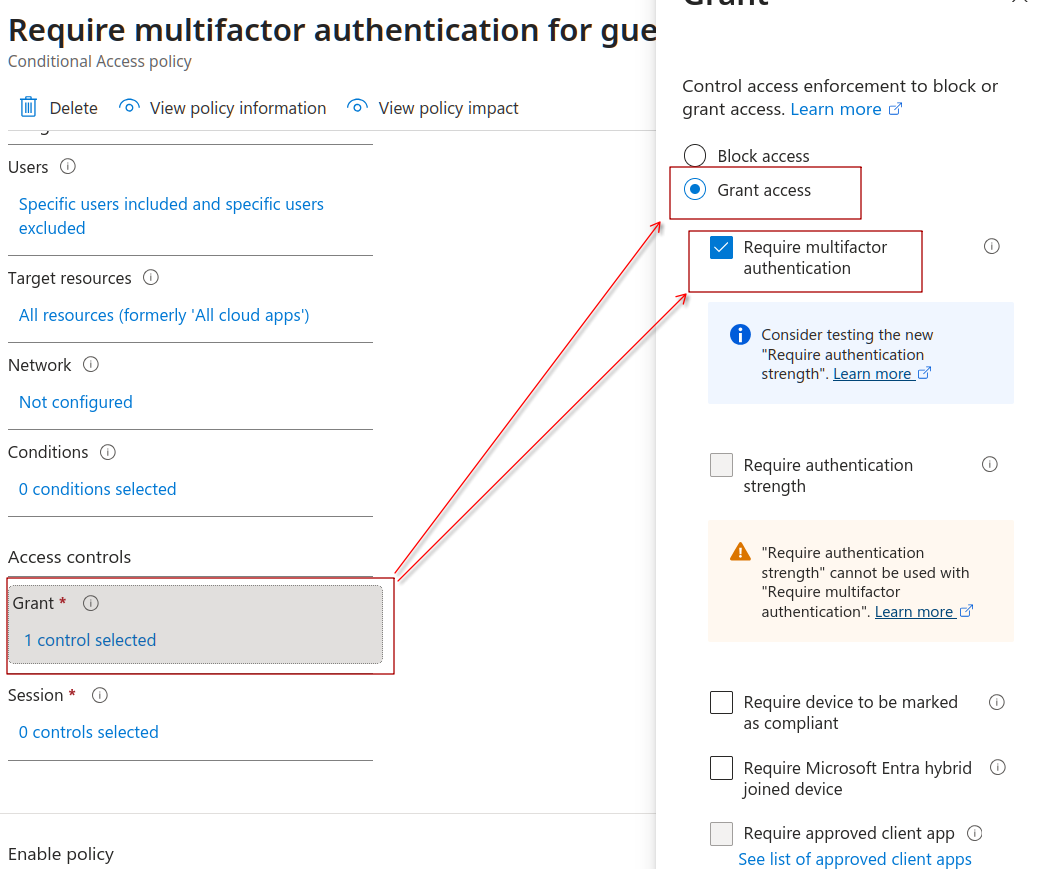
Step 3 — Target Resources
- Grant access
- Require multifactor authentication
- “Require all the selected controls” (only matters once you add more than one)
- Session: (optional) - Leave default
Step 4 — Enable Policy
- Report-only for the first pass
Once you create it, let it run in Report-only for a few days, then check Entra ID → Sign-in logs, filter by that policy name, and confirm it’s only matching guest sign-ins and not catching anyone unexpected.